AI Photo Editor / Change text on poster
Dates · venues · headlines
Change Text on a Poster
Reuse last year’s poster: change the date, venue, time or headline and keep the design. Pick where the text is when the same words appear twice. Free first edit.
- 1 free edit, no account
- ≈8 s per edit
- Photos never stored
Pick where the text is, then type the new words.
In short
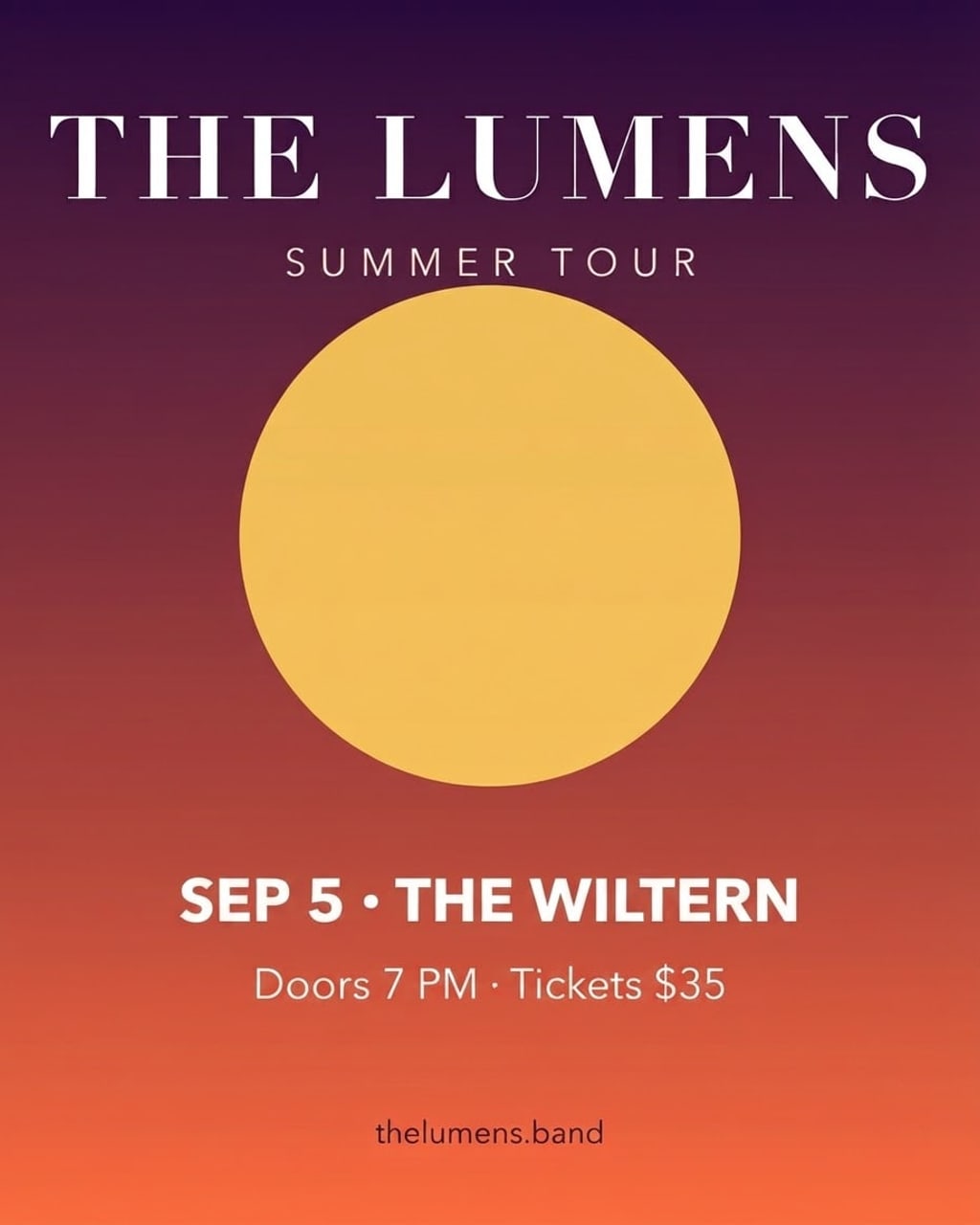
To change text on a poster or flyer, upload the image, type the text on the poster (for example “AUG 22 · THE FILLMORE”) and the new text (“SEP 5 · THE WILTERN”), and press Develop. Only that line is rewritten, in the same typeface, colour and position, so you can reuse a design for a new date or venue without the original file. If the same words appear twice — a headline and a stamp — choose Top, Middle or Bottom to say which one to change.
Before and after
Results from this editor
 BeforeAfter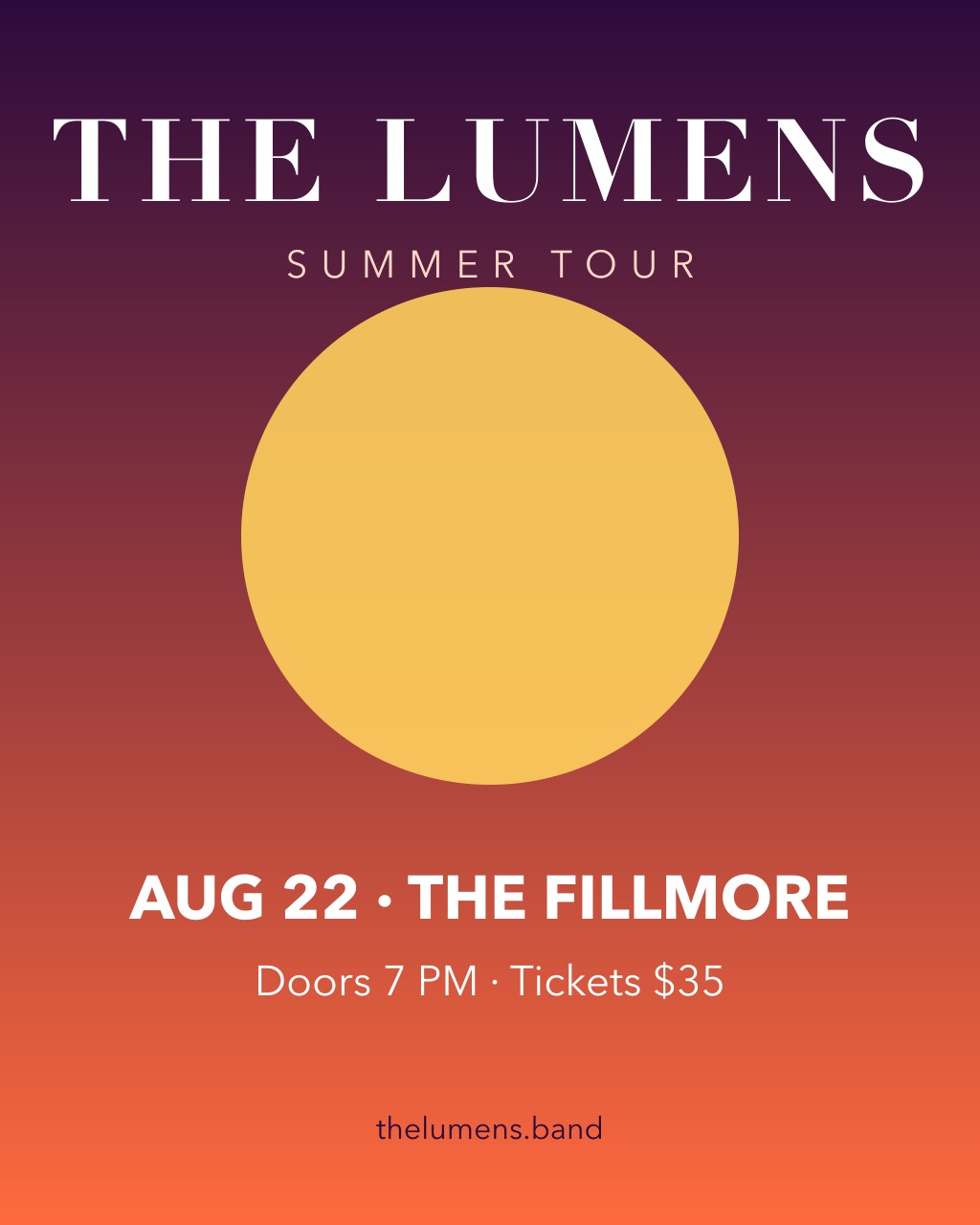
 BeforeAfter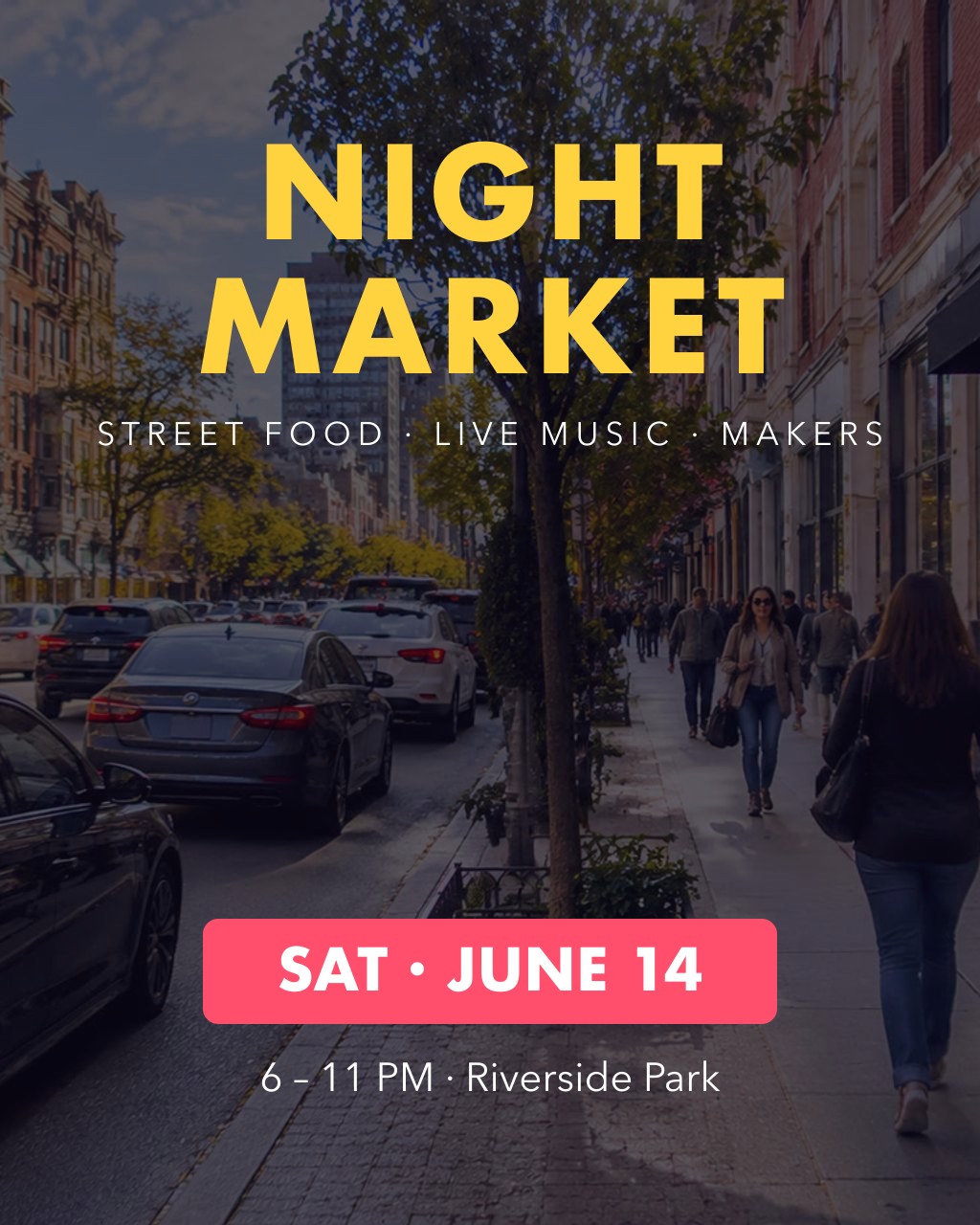
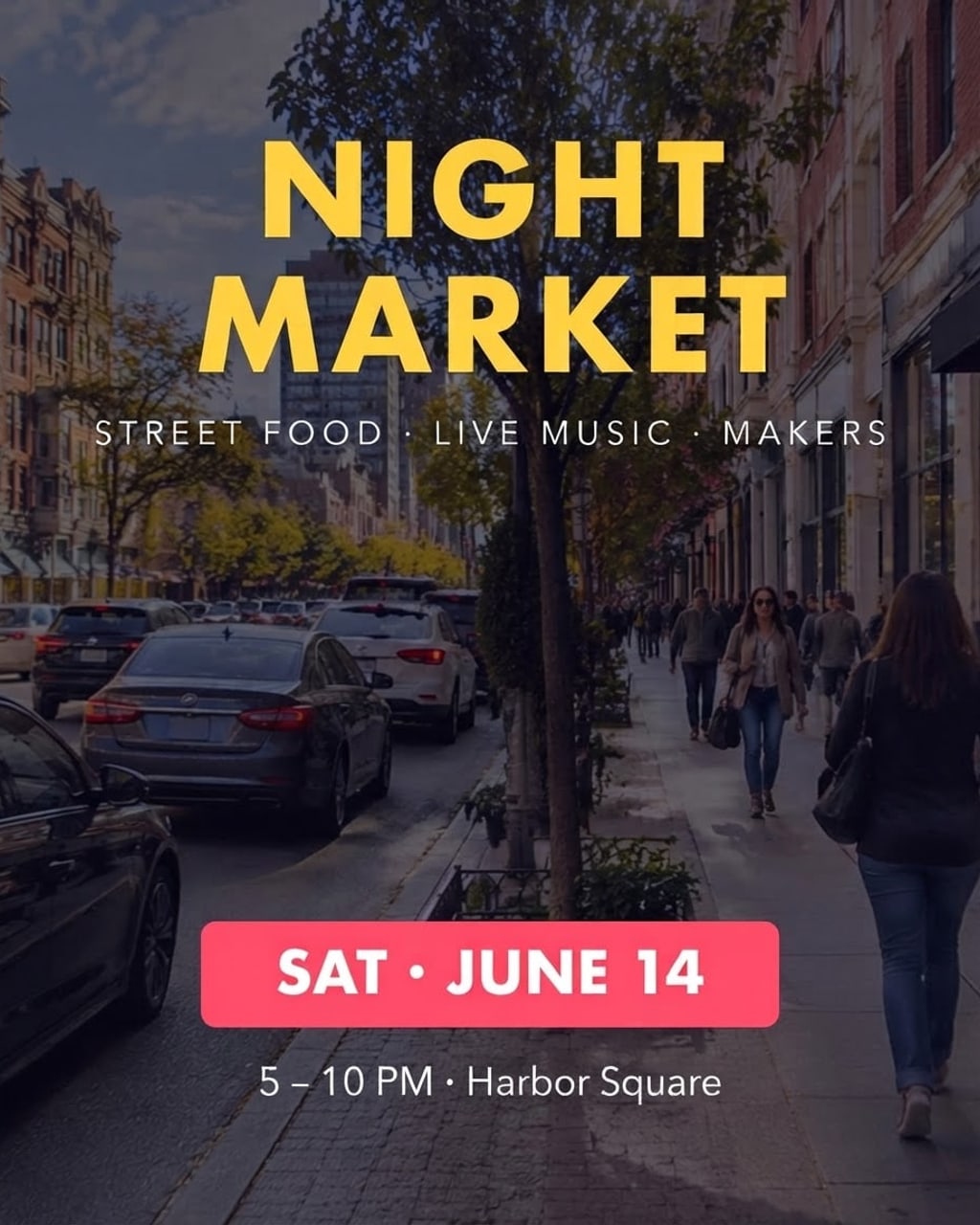 BeforeAfter
Sample photos are AI-generated and show fictional people. Results are unretouched output from the editor.
How to
Three steps
- Upload the poster or flyer (a photo or the exported image).
- Type the text on the poster and the new text. If those words appear more than once, choose Top, Middle or Bottom.
- Develop and download, then change the next line if needed.
Three poster jobs it handles
| Job | Example | Tip |
|---|---|---|
| New date for a repeat event | AUG 22 · THE FILLMORE → SEP 5 · THE WILTERN | Change date and venue in one line if they share a line |
| New time or place | 6 – 11 PM · Riverside Park → 5 – 10 PM · Harbor Square | Keep the same separators (·, –) for the cleanest result |
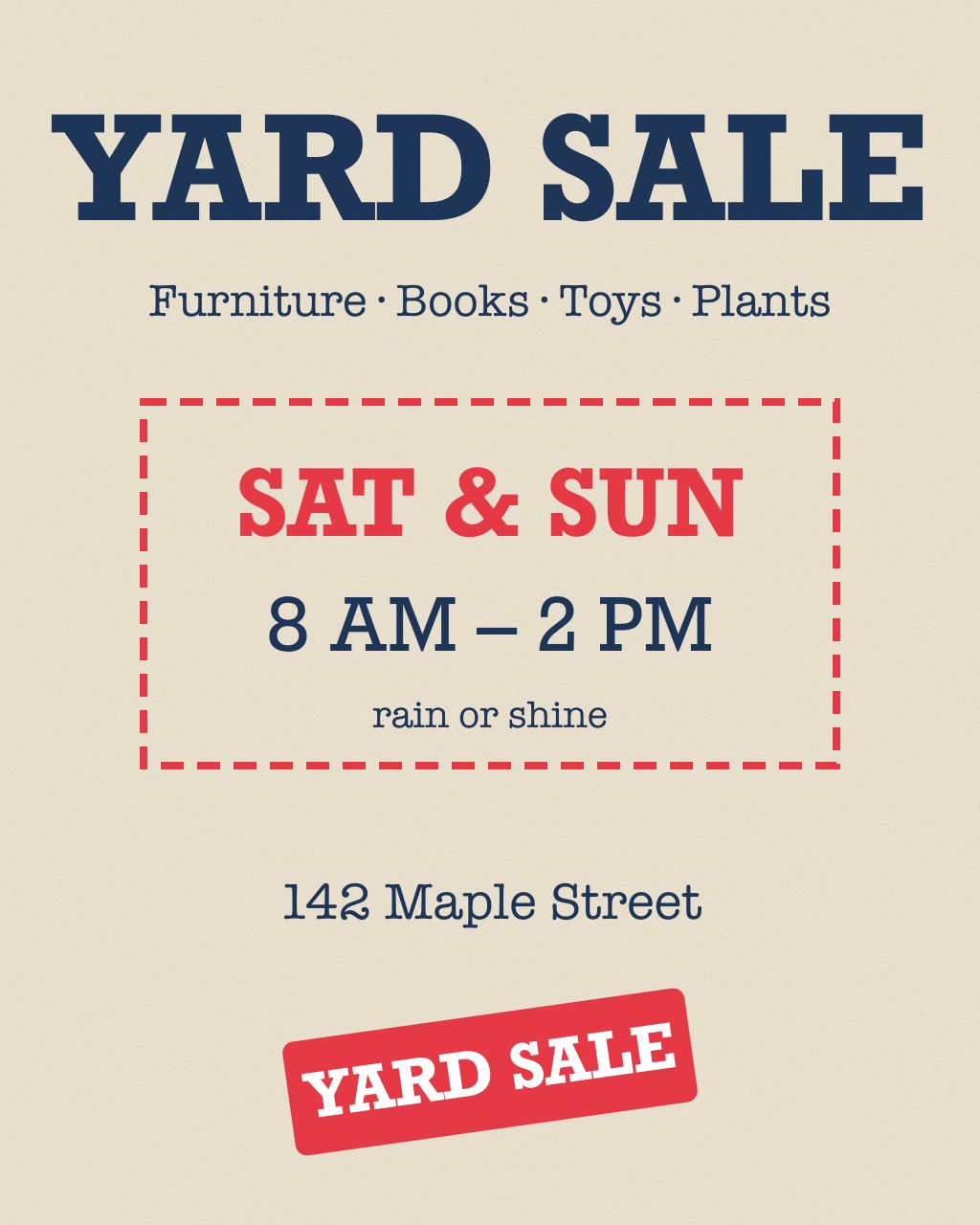
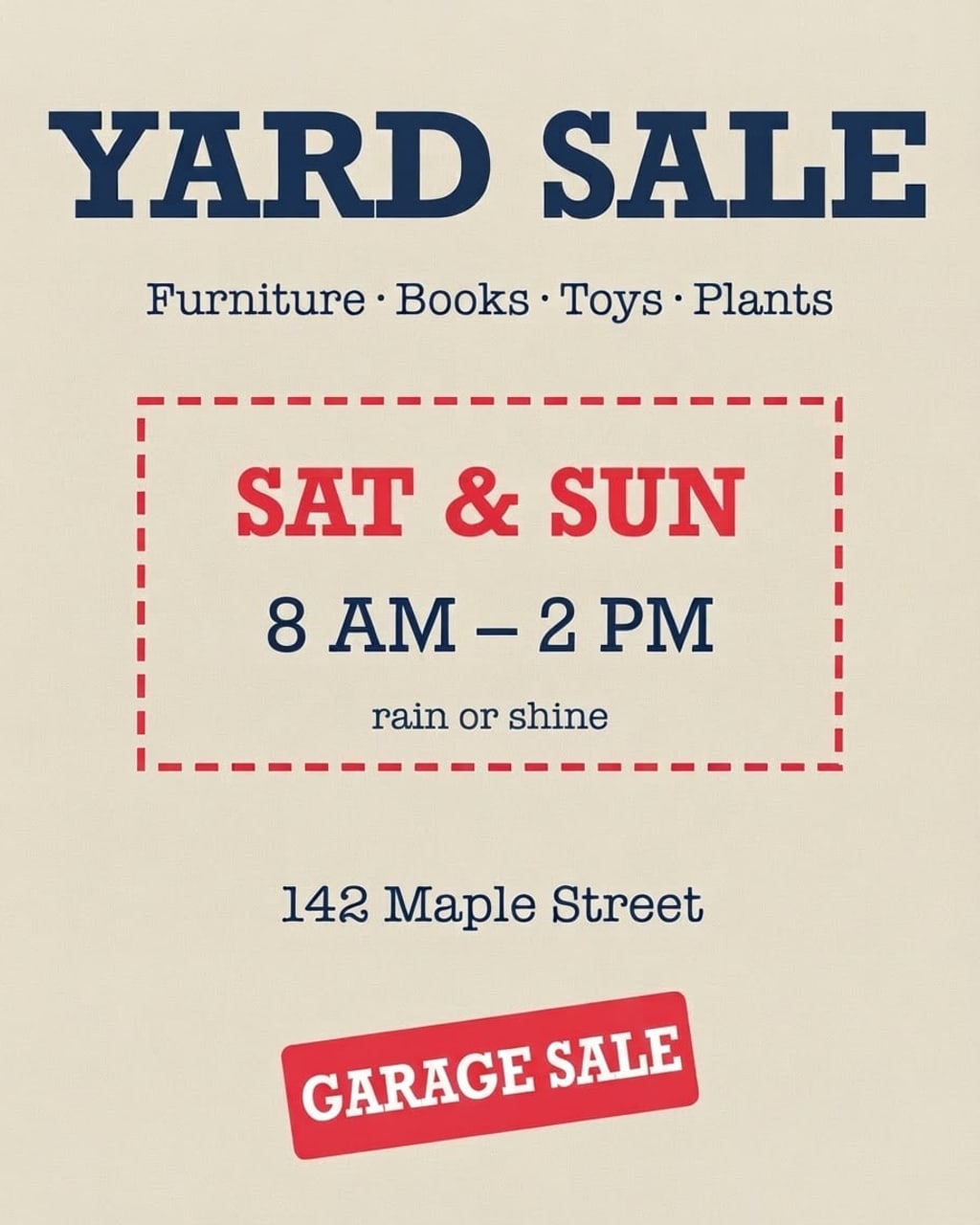
| One of two identical words | the YARD SALE stamp → GARAGE SALE, headline untouched | Choose Bottom so only the stamp changes |
When you don’t have the design file
Most posters live on as a JPG on someone’s phone or a PNG on Instagram. Rebuilding one in Canva means finding the font, matching colours and re-placing every element. Here you change only the words that are out of date and keep the rest pixel-for-pixel, so last season’s poster becomes this season’s in a minute.
What works best
- Best on clear, printed text: headlines, dates, prices, buttons, labels, signs.
- Keep the new text close to the original length; very long replacements can crowd the layout.
- Tiny body text (a full paragraph of small print) is less reliable — change one line at a time.
- Always check numbers, names and accents in the result before you print or publish it.
Frequently asked questions
The same word is on my poster twice. Can I change just one?
Yes. Choose Top, Middle or Bottom before you develop, and only the text in that part of the poster is changed. In our yard-sale sample, the bottom stamp changed to GARAGE SALE while the headline stayed YARD SALE.
Can I print the result?
Yes. The result keeps your poster’s size and aspect ratio. For large prints, start from the largest version of the poster you have.
Can I change the language of the whole poster?
Yes — use Translate text in image, which rewrites every line in another language and keeps the layout.
What if the text comes out wrong?
Failed edits are refunded automatically, and a standard text edit costs 1 credit (about 8¢), so a retry is cheap. In our tests most edits come out right first time; when one doesn’t, it is usually a much longer new text — keep it close to the original length, or change one line at a time.
Is it free?
Your first edit each day is free with no account, email or watermark. After that a text edit costs 1 credit: packs start at $9.90 for 120 credits (about 8¢ an edit) and never expire.
Do you keep my photos?
No. Your photo is sent to the AI model only to make the edit, then discarded. We never store the photo or the result on our servers, and we never use them for training. The edited photo is returned straight to your browser.
More tools